Article
How to Resolve Suspected Mailbox Takeover Issues
Stance detected unusual mailbox rules that may have been created by an attacker to hide emails or commit fraud. This guide explains how to verify the rules and secure the account.
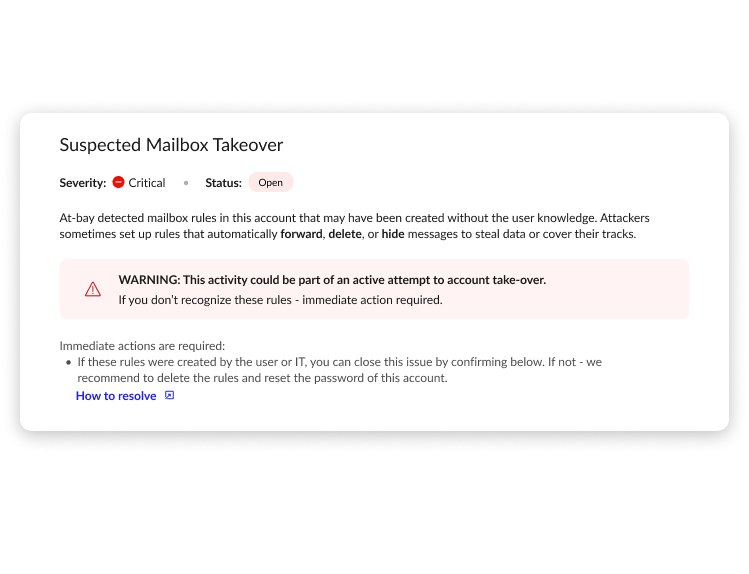
Stance detected suspicious mailbox rules in this Microsoft email account. Mailbox rules are automatic actions (for example, deleting or moving emails). Attackers often create these rules to hide messages or enable fraud. This does not always mean the account was compromised — the rules may have been created intentionally.
Step 1: Confirm the Rules Are Not Legitimate
Review the rules listed in this issue and confirm:
-
The mailbox user did not create them
-
Your IT provider did not create them
How to check in Outlook:
-
Sign in to Outlook on the web (https://outlook.office.com)
-
Click Settings (⚙️) → Mail → Rules
-
Review the list of rules and compare them to the ones shown in Stance
If all rules are expected, no action is required, you can mark “resolved – not an issue” in Stance. If any rule is unfamiliar, continue below.
Step 2: Secure the Email Account
Reset the password:
-
Sign in to Microsoft 365 Admin Center
-
Go to Users → Active users
-
Select the affected user
-
Click Reset password
Enable Multi-Factor Authentication (MFA):
-
In the Microsoft 365 Admin Center
-
Go to Users → Active users
-
Select the user
-
Enable Multi-Factor Authentication
If available, also sign out of all active sessions.
Step 3: Remove the Suspicious Mailbox Rules
Delete the rules:
Delete the rules marked as suspicious by Stance, keep an eye for other rules that:
-
Automatically deletes emails
-
Moves emails to hidden or unusual folders
-
Forwards emails to unknown addresses
How to remove rules in Outlook:
-
In Outlook → Settings → Mail → Rules
-
Select the suspicious rule
-
Click Delete
If you are unsure about a rule, it is safest to remove it.
Step 4: Improve Protection Going Forward
To reduce the risk of future incidents:
-
Enable MFA for all users
-
Use strong, unique passwords
-
Limit admin access to only necessary users
-
Remind users to be cautious of phishing emails
Where to manage this in Microsoft:
-
Microsoft 365 Admin Center → Security / Identity settings
-
Review user access and authentication settings regularly
If you have additional questions, contact our support team at security@at-bay.com or via chat. We’re here to help keep your organization secure.