Article
Inviting Your Team to At-Bay Stance
At-Bay Stance is your unified platform for managing cyber risk and security recommendations. This guide provides the exact steps needed for an Admin to invite new team members and for recipients to activate their accounts.
Prerequisites
- Initial access to System Settings and the authority to invite the first users is restricted to the registered Security Contact.
- You will need the exact professional email address of the team member you wish to invite.
Step-by-Step: Sending a New Invitation (Admin Side)
Follow this precise sequence to send an invitation successfully:
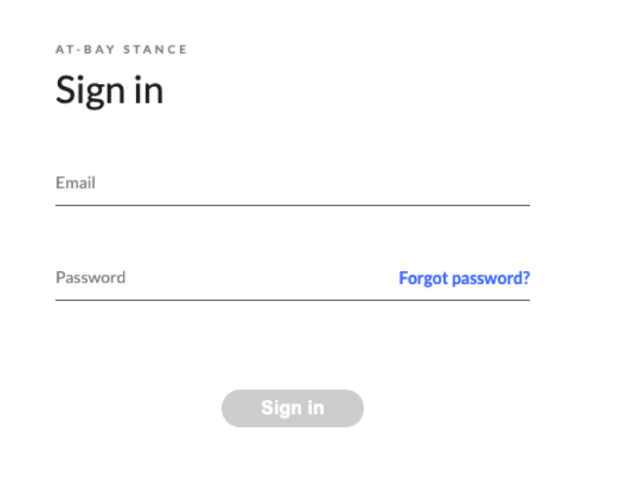
1. Login to Stance: Open your browser and navigate to the Stance login page to sign in to your account.
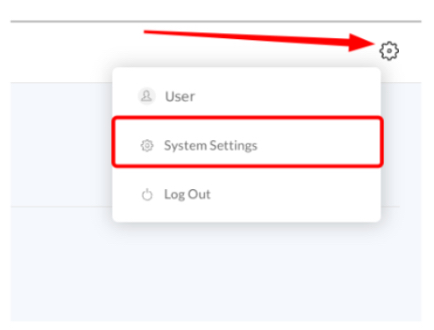
2. Access Settings Menu: Click the Gear Icon in the top right corner of the screen.
3. Open System Settings: From the dropdown menu, select “System Settings.”
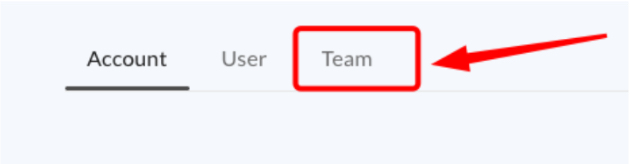
4. Navigate to Team Management: Once in the settings area, click the “Team” tab at the top of the screen.
5. Initiate Invite: Click the prominent blue circle with a plus sign (+) next to the text “Invite new user.”

6. Fill User Details: Complete all necessary fields in the “Invite new user” modal, including First Name, Last Name, Job Title, and Email Address.
7. Configure Alerts: Set the “Send email alerts” toggle based on the user’s need for security posture notifications.
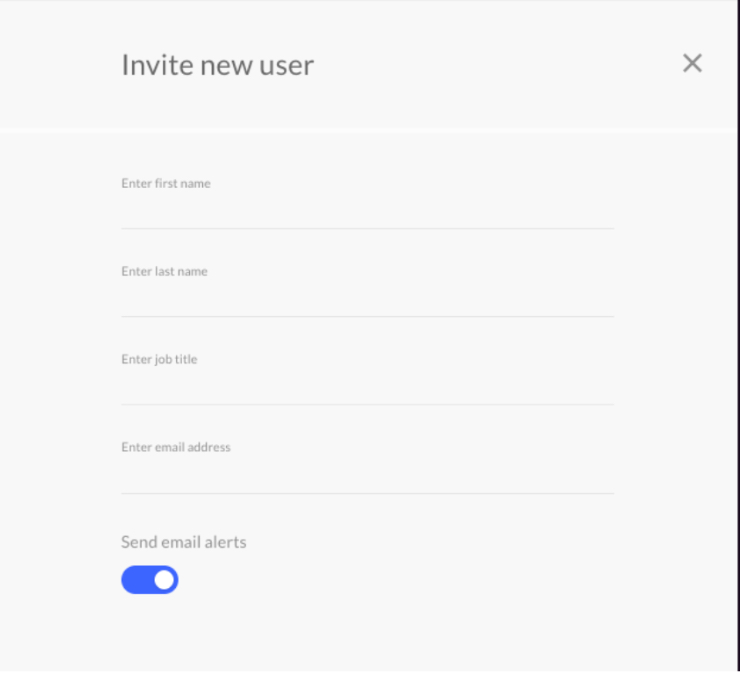
8. Send Invitation: Click the blue “Invite user” button at the bottom of the modal to finalize and send the invitation email.

User Side: Accepting the Invitation
Once the Admin sends the invitation, the recipient must complete the following steps to activate their account:
1. Receive and Open Mail: Check your email inbox for a new invitation mail from Stance (or At-Bay). Crucially, check your Spam/Junk folder if you do not see it immediately.
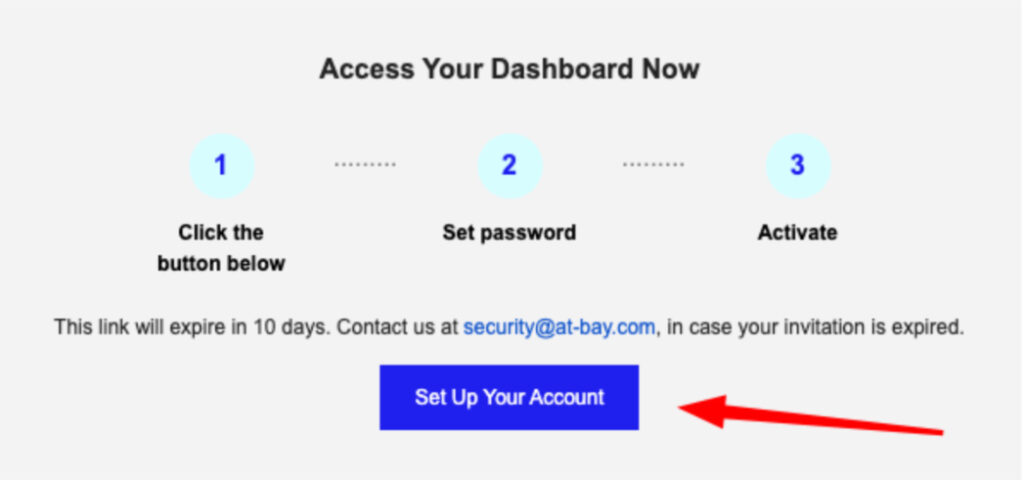
2. Create Account Link: Click the link provided in the email, typically labeled “Setup/Create Your Stance Account.” This link will take you to a secure page to finalize setup.
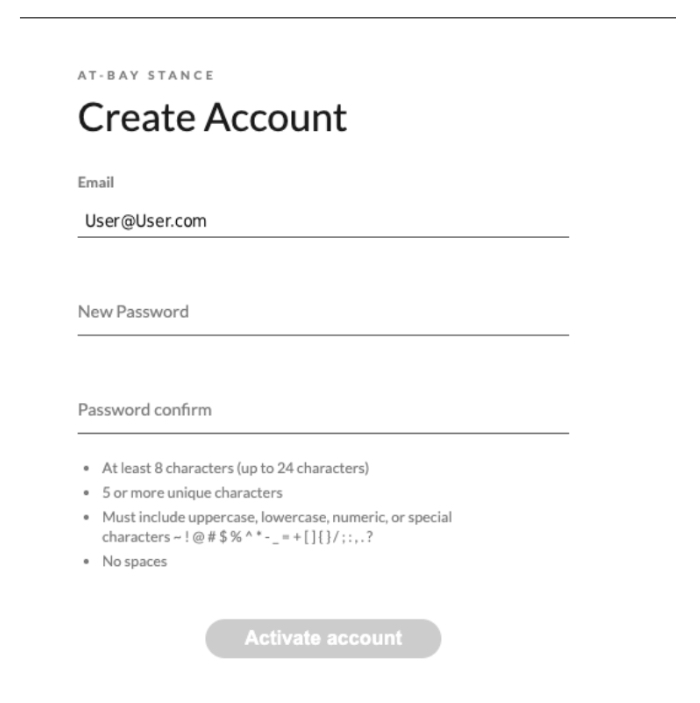
3. Configure Password: On the setup page, configure and confirm a strong password for your new Stance Account.
4. Login: Once the password is set, you will be directed to the login screen. You can now log in to Stance using your email address and the new password.
Frequently Asked Questions (Q&A)
Regarding the Invitation Process
| Question | Answer |
|
What would I do if I didn’t receive an invitation?
|
First, check your spam or junk folder. If still missing, the Security Contact must re-create the invitation (delete the user, then re-add in the Team tab). New invites override any previous unaccepted one. Alternatively, if you are the registered Security Contact, use this URL: https://stance.at-bay.com/new-invitation (This action sends the invite only to the Security Contact’s registered email address). |
| How long does the invitation link remain valid? |
For security purposes, the invitation links sent by At-Bay Stance typically expire after 10 days. If the link has expired, an Admin must follow the steps in the Team tab to resend the invitation.
|
| Can I invite someone who is not a full-time employee? |
Yes, you can invite external parties (like MSPs, auditors, or consultants) to collaborate. However, ensure they are assigned the appropriate role (e.g., Viewer or Editor) based on the principle of least privilege for security.
|